Setup Assistant — Auto-fill Your Account
The Setup Assistant reads your existing business documents and automatically fills in your company profile, tax details, and bank account — so you can skip manual data entry and start invoicing in under a minute.
Upload one of your own outgoing invoices, a letterhead, or a quote. These documents typically contain all your business details in one place — company name, address, VAT number, and bank account.
What Gets Auto-filled?
The Setup Assistant extracts data for three setup steps at once:
| Setup Step | Fields Extracted |
|---|---|
| Company Profile | Company name, street address, postal code, city, country, phone, email |
| Tax Information | VAT number (USt-ID), tax identification number (TIN), company registration number |
| Bank Account | IBAN, BIC, bank name, account holder |
After extraction, you review every field before saving — nothing is written to your account without your confirmation.
How It Works
Step 1: Open the Setup Assistant
The Setup Assistant appears automatically when your account setup is incomplete. You can access it from two places:
- Dashboard banner — The gradient "Complete setup in 30 seconds" banner above your onboarding widget
- Complete Setup button — In the greeting bar at the top of your dashboard
Step 2: Upload a Document
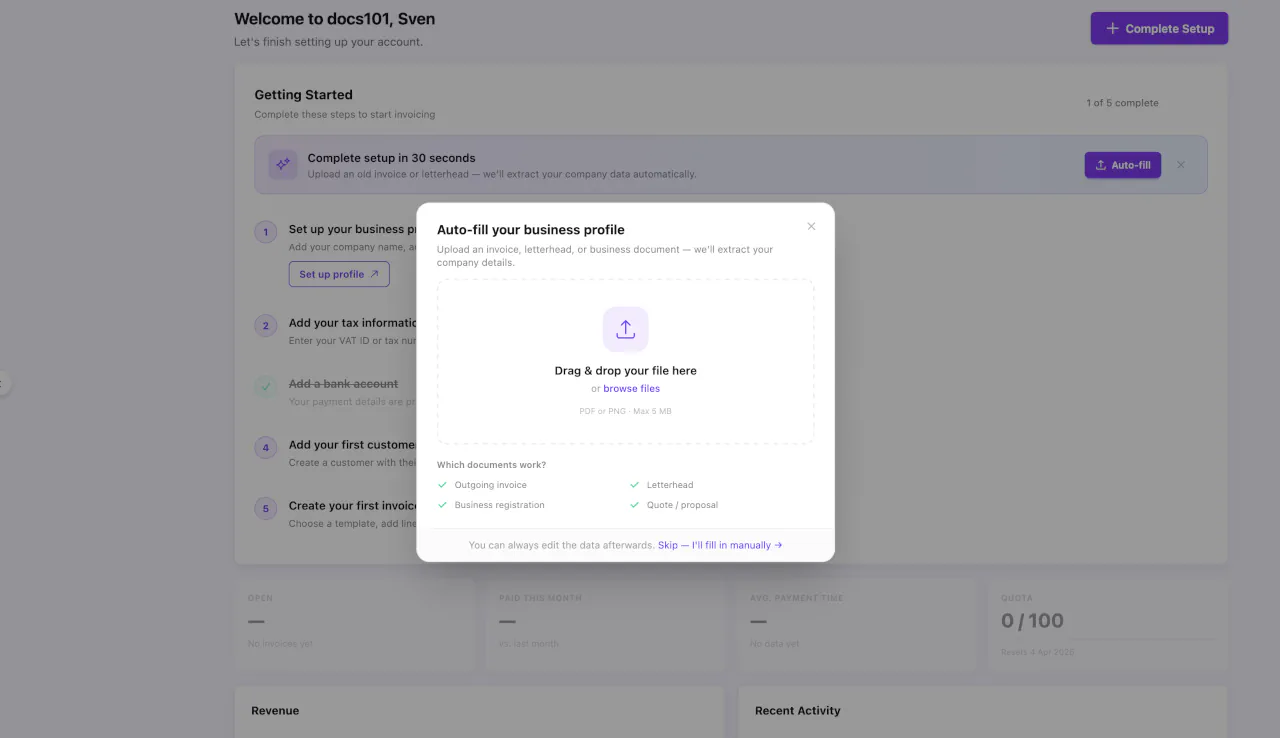
- Drag and drop a PDF into the upload zone — or click to browse your files
- Supported format: PDF (max 5 MB)
- The assistant begins processing immediately after upload
Any business document that contains your company details works well: invoices you've sent to clients, official letterheads, quotes, or order confirmations. The document should include your company name, address, and ideally your VAT number and bank details.
Step 3: Review Extracted Data
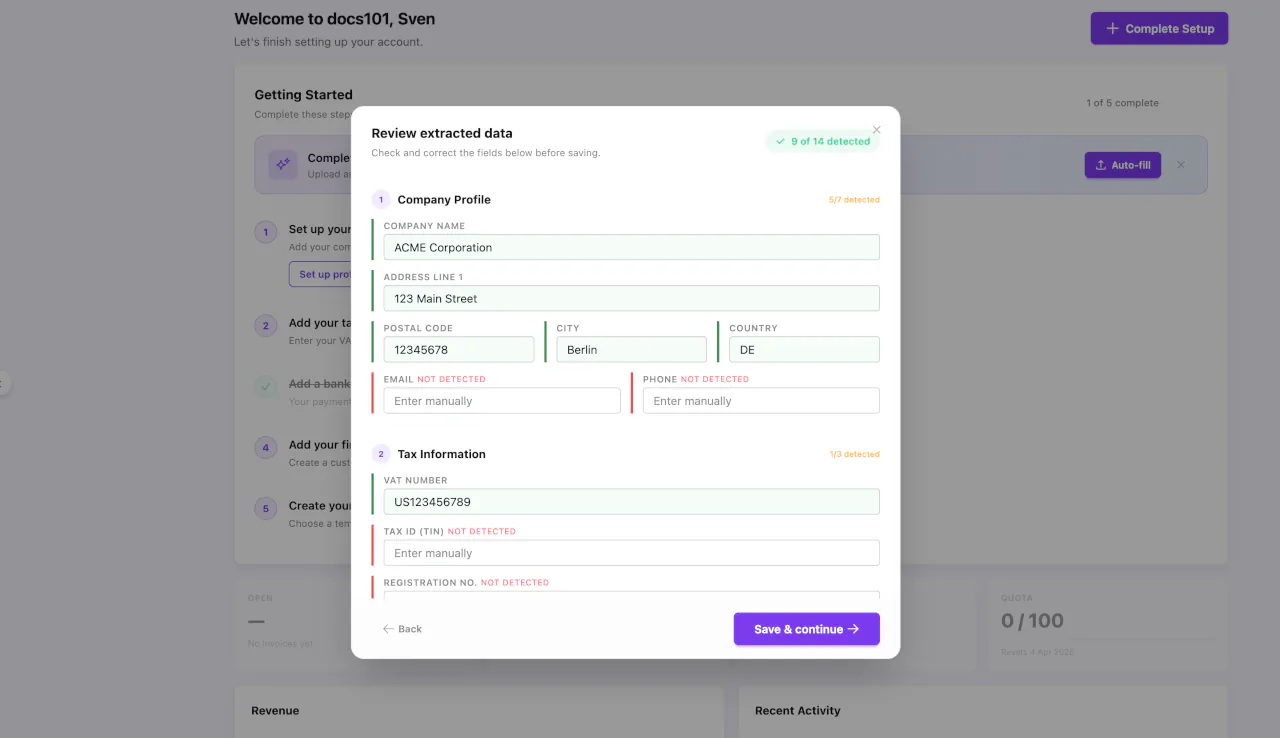
After processing, the assistant presents all extracted fields in a review form. Each field has a confidence indicator:
- 🟢 High confidence — The value was clearly found in the document. Review and confirm.
- 🟡 Medium confidence — The value was found but may need verification. Double-check before saving.
- 🔴 Not found — The field could not be extracted. Enter the value manually.
You can edit any field before saving. The form is organized in three sections matching the setup steps: Company Profile, Tax Information, and Bank Account.
- Review each field and correct any values that look wrong
- Fill in any red (not found) fields manually
- Click Save & Complete Setup
The assistant uses AI to extract data. While accuracy is high for clearly printed business documents, always verify critical fields like your VAT number and IBAN before saving.
Step 4: Done
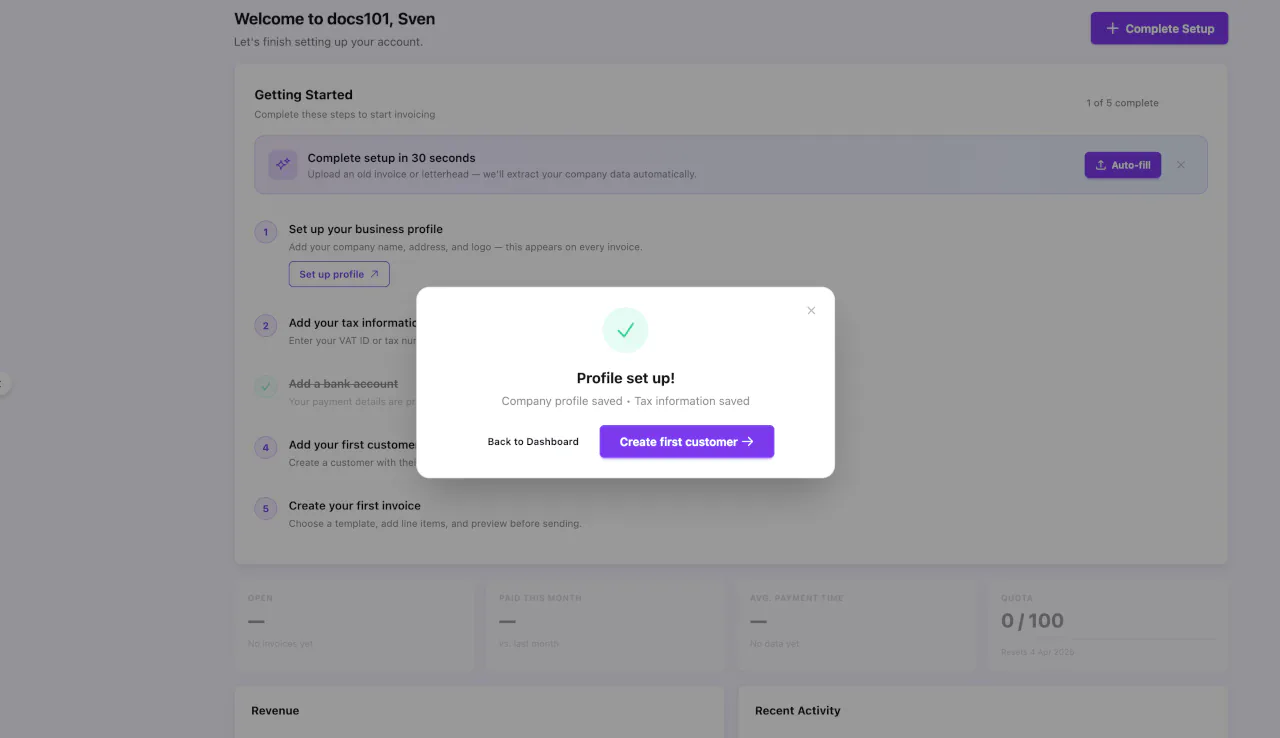
Your account setup is now complete. The onboarding widget on your dashboard updates automatically — steps 1 through 3 show green checkmarks.
You're ready to add your first customer and send your first invoice.
Supported Documents
The Setup Assistant works best with:
- Outgoing invoices — Your own invoices to clients (best results — contains all data)
- Letterheads — Official company stationery with header and footer
- Quotes / Proposals — Business documents with your company details
- Order confirmations — Documents with sender information
Documents should be in PDF format with clearly legible text. Scanned documents work if the print quality is reasonable.
Prefer Manual Setup?
If you don't have a document handy or prefer to enter your details manually, you can skip the Setup Assistant entirely. Follow the manual setup guide to complete each step by hand. You can also click Skip — I'll fill in manually in the upload modal.
Frequently Asked Questions
Can I use the Setup Assistant after I've already entered some data? Yes. The assistant only fills in fields that are still empty. Existing data is preserved.
What happens if the extraction is wrong? Nothing is saved automatically. You review and edit every field in the review step before confirming. If a value looks wrong, just correct it in the form.
Is my document stored? The uploaded document is processed temporarily and deleted after extraction. It is not stored permanently on docs101 servers.
What languages are supported? The assistant can extract data from documents in any Latin-script language. Document language does not affect extraction quality.
Next Steps
- Create your first invoice — Add a customer and send your first invoice
- Understanding your dashboard — Learn about KPIs and widgets
- Manual setup guide — Detailed step-by-step instructions for each setting